Your money data is yours. It stays with you.
Kaban has no accounts and no servers. Here's where your data lives, how to keep it safe, and how to use Kaban on more than one device with your own Google Sheet.
Most people don't need sync at all. Just make a backup every week or sweldo (how). Sync is only for using Kaban on more than one device, like your phone and your laptop. Do I need it?
Your data
Where your data lives
- On your device only. Everything you enter is saved inside Kaban on that phone or computer, in that browser. Nothing is uploaded, and Kaban (we) can't see it.
- No login, no account. That's why there's no password to forget, and also why we can't recover your data if it's lost. Your backup is your safety net.
- With a PIN, it's locked. When you set a PIN lock, your data on the device is encrypted with it. Without the PIN, it can't be read. Don't forget your PIN: we can't reset it.
- Each device is separate. Kaban on your phone and Kaban on your laptop don't know about each other, unless you turn on Google Sheets sync.
What can erase your data
Avoid these, or make sure you have a recent backup first.
- Clearing your browser data (cookies, website data, history "for all time") for kabanapp.ph/app.
- iPhone: deleting the Kaban icon from your home screen deletes its data too.
- Using a private or incognito window. Everything is erased when you close it.
- Losing, resetting or replacing your phone without a backup or sync.
- Settings › Erase this device in Kaban. It asks twice, and can't be undone.
Tip: Updating Kaban never touches your data. When you see A new version of Kaban is ready, it's safe to tap Update now.
Back up your data
A backup is one file with everything in your Kaban. Make one every week or every sweldo. Kaban reminds you.
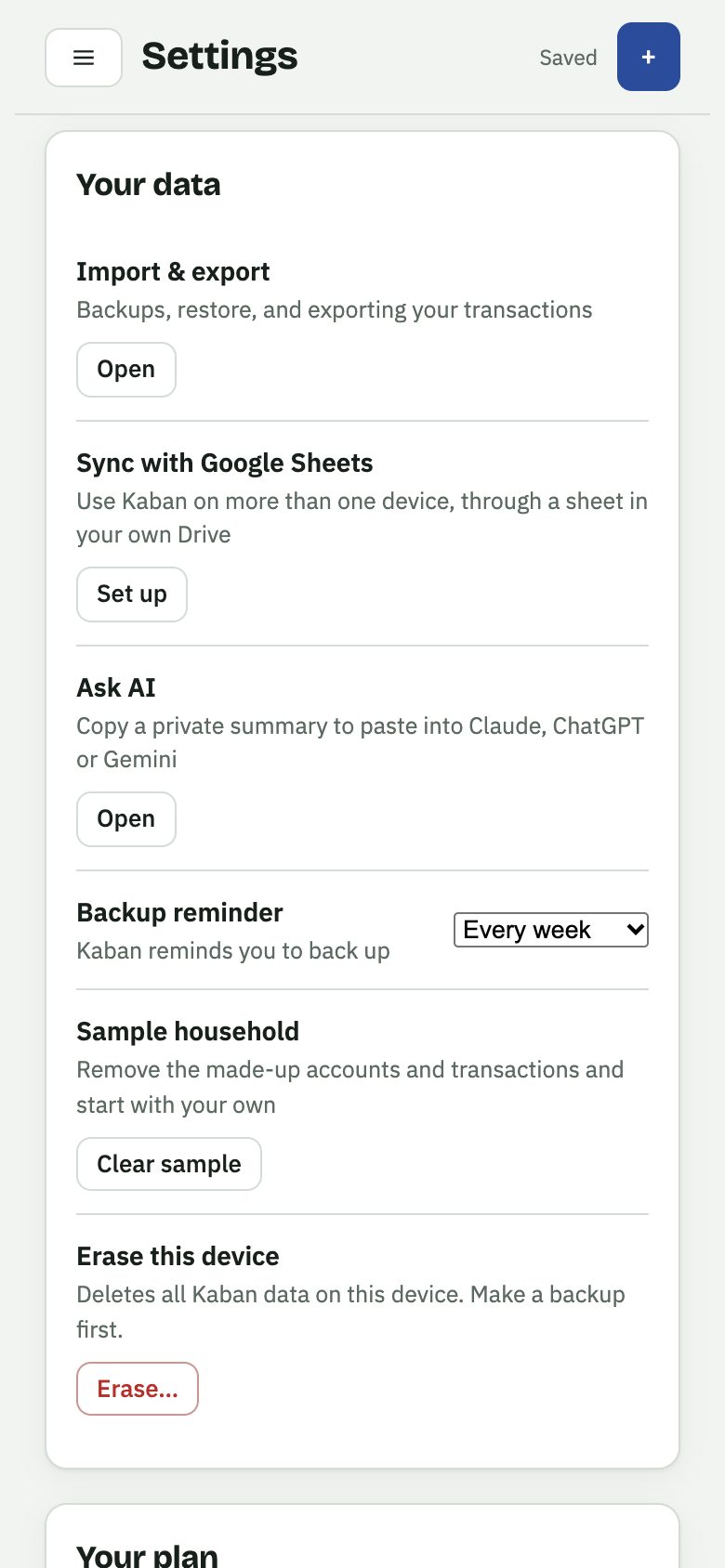
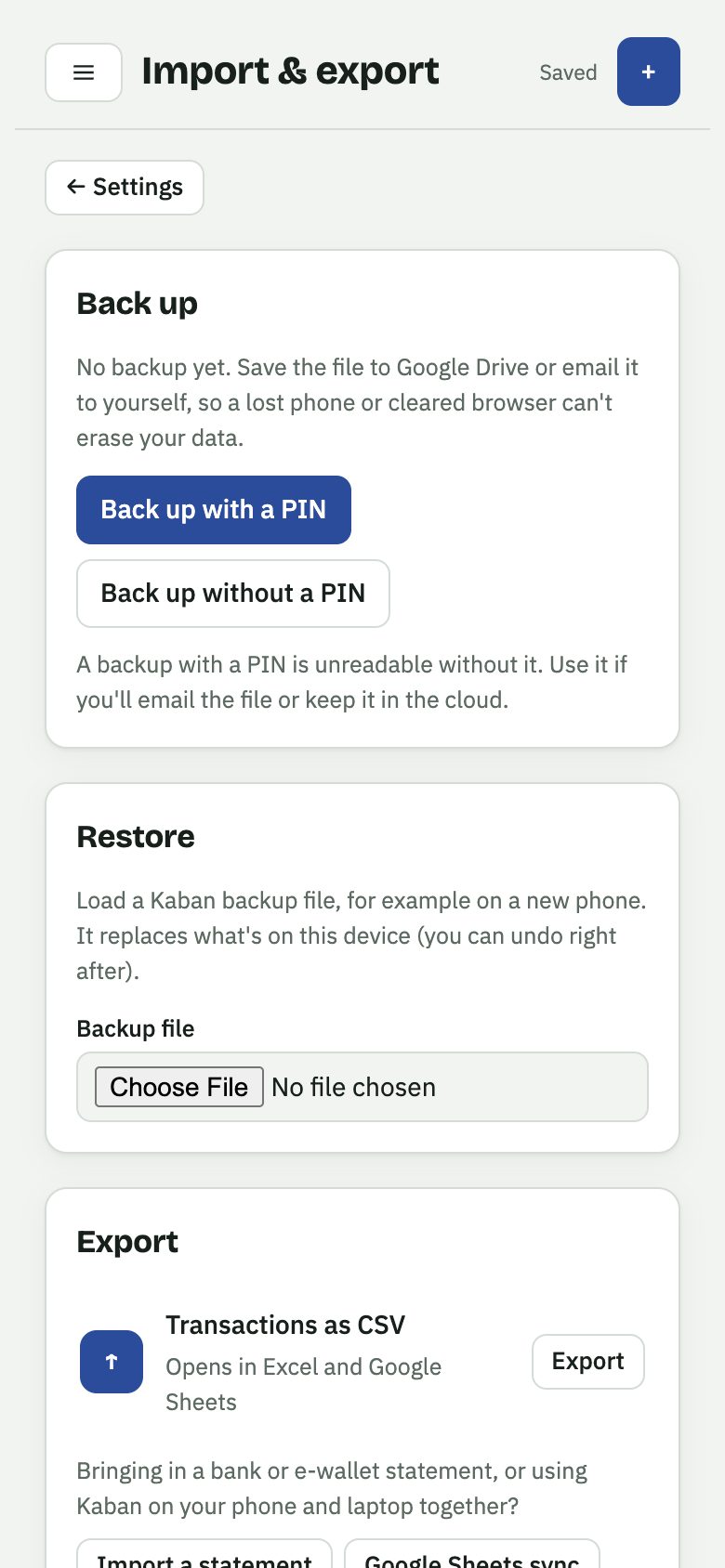
- Go to Settings › Your data › Import & export and tap Open.
- Tap Back up with a PIN and choose a PIN for the file (it can be the same as your app PIN). The file can't be opened without it, so it's safe to keep in the cloud.
- Save the file somewhere that isn't your phone: Google Drive, iCloud Drive, or email it to yourself.
- Choose how often Kaban reminds you in Settings › Your data › Backup reminder: every week, 2 weeks or month.
Tip: Back up without a PIN makes a readable file. Use it only if you'll keep the file on a device that's yours alone.
Moving to a new phone
- On your old phone: make a fresh backup (above) and save it to Google Drive or iCloud Drive, or email it to yourself.
- On your new phone: add Kaban to your home screen (see Get Kaban on your device) and open it from the icon.
- Go through the quick setup (any answers are fine), then go to Settings › Your data › Import & export › Restore a backup and choose your file. Enter its PIN.
- Activate your plan again on the new phone with the same code from your email (Settings › Your plan).
Restoring replaces everything on that device with what's in the backup. If you use Google Sheets sync, you can skip the backup: just connect the new phone with your connection code and your data comes down from your sheet.
Export and import
- Transactions as CSV: a spreadsheet file of all your transactions, for Excel or Google Sheets.
- Import a statement: bring in transactions from a bank or e-wallet statement (CSV). Kaban shows them first so you can check before adding.
Both are in Settings › Your data › Import & export.
Google Sheets sync
Do you need sync? One device or more
Kaban keeps your data on the device you use it on. Sync is only for using Kaban on more than one device at the same time.
Use Kaban on that one device and make a backup every week or sweldo. Works on every plan.
Without sync, each device keeps its own separate data: what you add on your phone won't show on your laptop.
A one-time move. Back up on the old phone and restore on the new one.
Each of you uses Kaban on your own phone. Shared bills and settle-ups sync through a household sheet, and your own spending stays private.
How sync works
Sync lets you use Kaban on your phone and your computer (or a new phone) with the same data. It uses a Google Sheet in your own Google Drive, so your data still never goes to Kaban.
- You make your own copy of the Kaban Sheet and switch on a small script inside it. That script is what Kaban talks to.
- The sheet gives you a connection code. You paste it into Kaban on each device.
- Each device sends its changes to your sheet and picks up the others'. If the same thing was changed on two devices, the most recent change wins.
What syncs
Accounts, transactions, categories, sobres, bills and paydays, budgets, payslips, the wait list, installments, insurance and paluwagan.
What stays on each device
Your settings, PIN lock and plan activation. Set those up on each device.
Worried about the Google warnings? Read Is my data safe with sync? first. It explains each one.
Is my data safe with sync?
Yes. Sync was designed so that your money data only ever goes between your devices and your own Google account. Here's exactly how it's protected.
Kaban has no servers. Your phone talks directly to your own sheet in your own Google Drive. Your data never passes through us, and we have no way to open your sheet.
The sheet is yours, in your Drive, protected by your Google password and Google's security. It's private unless you share it yourself.
The sync script can only open the spreadsheet it lives in. It can't see your other files, your email or your contacts. Google's permission screen says so: "spreadsheets that this application has been installed in".
Your connection code holds a long random secret, made in your own copy. Without it, no one can read or change your data, even if they find your web app's address.
Everything between Kaban and Google travels over a secure HTTPS connection, the same as online banking.
Tap Disconnect in Kaban, make a new code (Kaban › Make a new connection code), or delete the sheet. You can also remove its access in your Google Account › Third-party connections.
Why does Google say "unverified" and "unsafe"?
Google shows these warnings for any script that isn't a published app. Your Kaban Sheet script isn't published: it's a private copy that you own. That's why the warning names your own email as the "developer". Big published apps go through Google's review; a private script in your own sheet doesn't need to. The script is short, and you can read every line in Extensions › Apps Script.
What you should do
- Keep your connection code private, like a password. Never post it, and never send it to us. We will never ask for it.
- Turn on 2-Step Verification for your Google account, so no one else can get into your Drive.
- Don't share the sheet with anyone. For a partner, use the household sheet, which only holds shared bills.
- Code leaked? Click Kaban › Make a new connection code in the sheet. The old code stops working right away.
To be clear: on your phone, Kaban keeps your data encrypted with your PIN. In the sheet, it's protected by your Google account instead, the same way your other Google Drive files are. If that doesn't suit you, sync is optional: use Kaban on one device and make backups.
Set it up (one time, about 10 minutes)
Do this on a computer, in Chrome, Edge or Safari, with your Google (Gmail) account. Google's script screens are hard to use on a phone. Follow the pictures: the orange boxes show what to click.
About the warnings: Google will call the script "unverified" and "unsafe". That's normal for a private script in your own sheet. Here's why it's safe.
Signed in to more than one Google account? Use a private (incognito) window signed in to just one. Otherwise Google may say "Sorry, the file cannot be opened".
Show the 16 steps, with picturesAbout 10 minutes, one time, on a computer
1 Copy the Kaban Sheet
In Kaban, go to Settings › Your data › Sync with Google Sheets, tap Set up, then tap Make a copy of the Kaban Sheet.
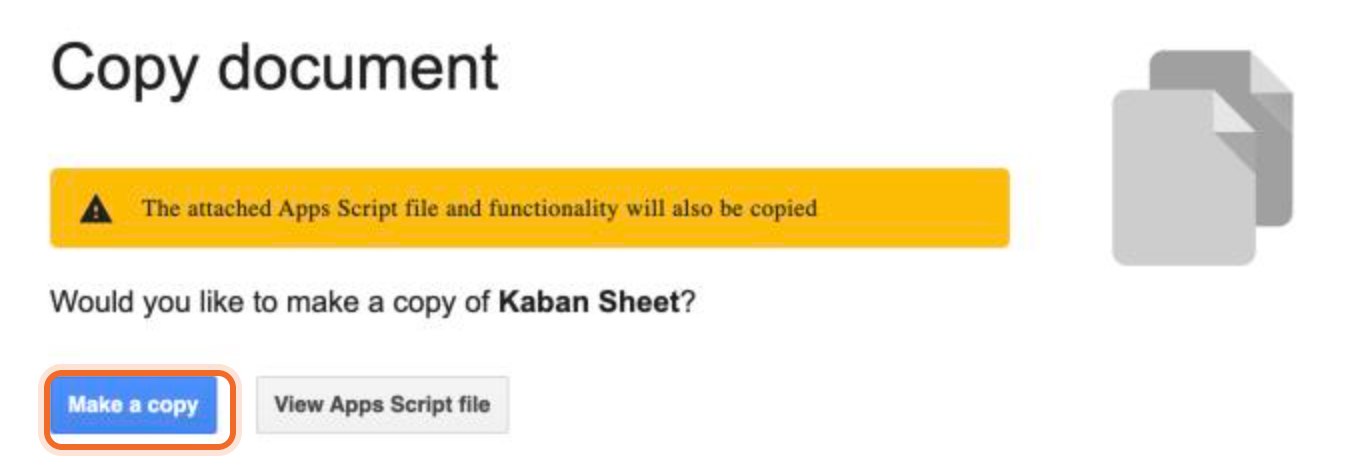
Google asks if you want a copy. Click Make a copy. It also copies the small sync script inside, which is expected. The copy is yours, saved in your Drive as "Copy of Kaban Sheet".
2 Allow the sync script
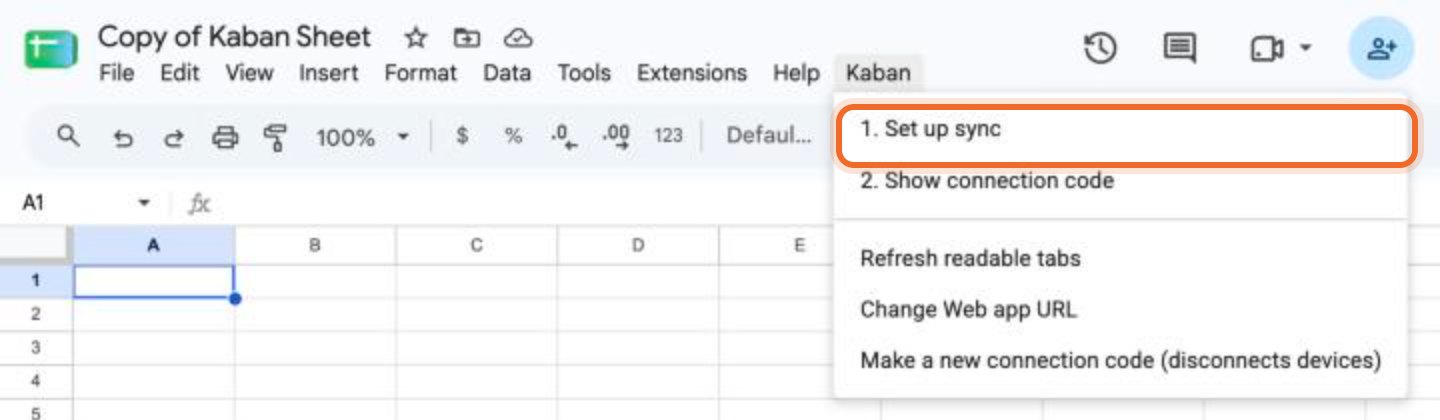
Wait a few seconds for the Kaban menu to appear next to Help (reload the page if it doesn't). Click Kaban › 1. Set up sync.
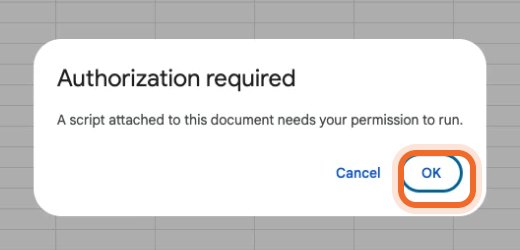
Click OK.
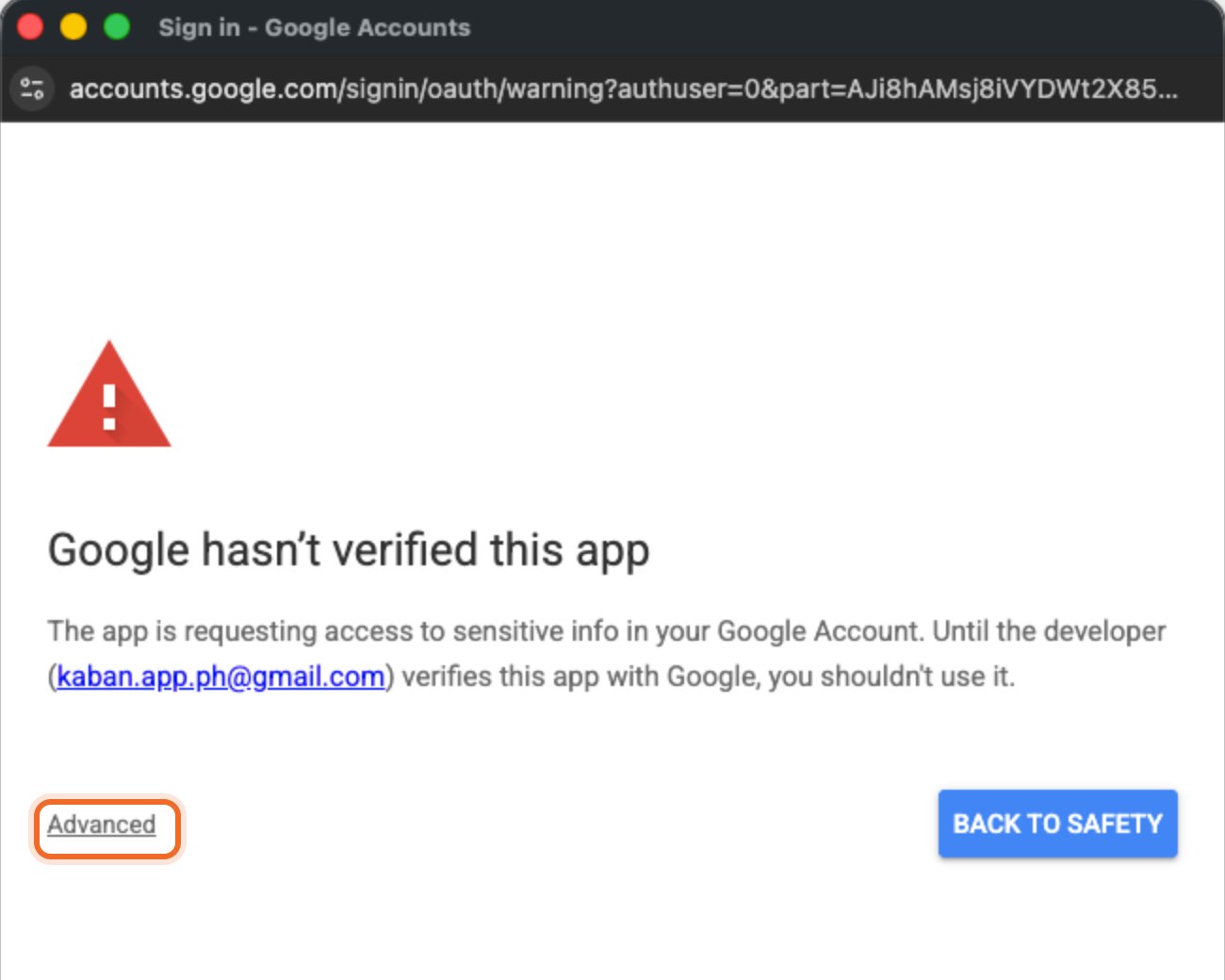
A Google window opens. If it asks, choose your Google account. You'll see "Google hasn't verified this app". That's expected: the "developer" it names is you, because the script lives in your own copy. Click Advanced.
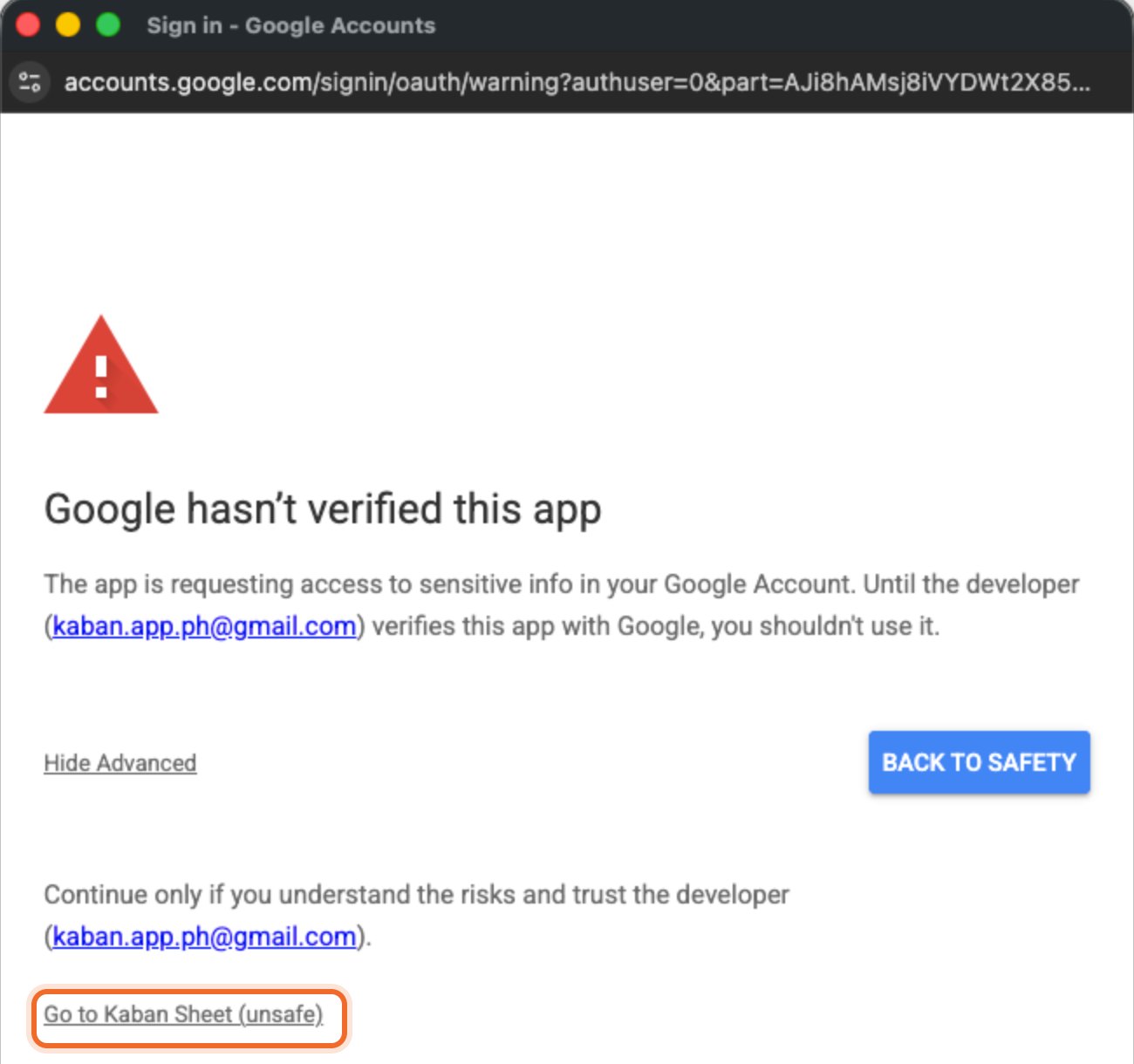
Click Go to Kaban Sheet (unsafe).
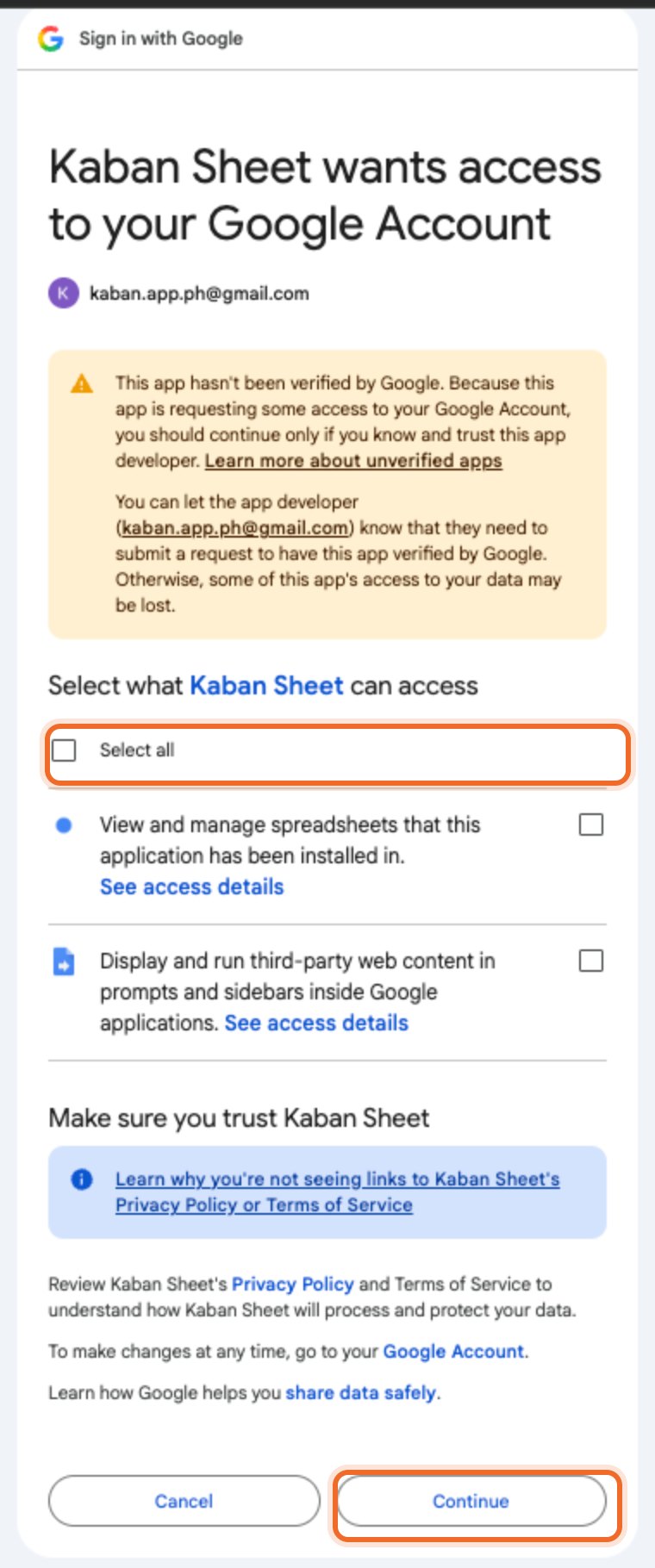
Tick Select all, then click Continue. Kaban Sheet only gets access to this one spreadsheet, not your other files.
Back in the sheet, you'll see "Almost there". Click OK.
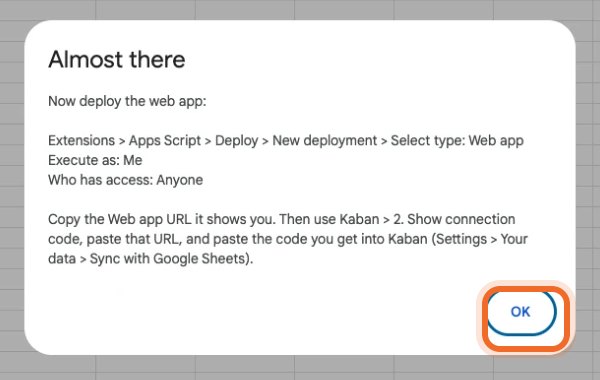
3 Turn on the web app
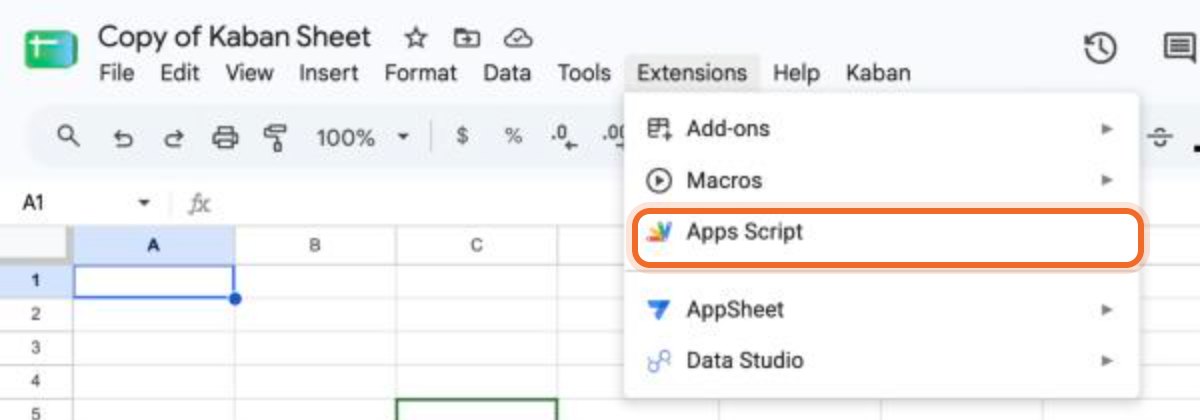
Click Extensions › Apps Script. A new tab opens.
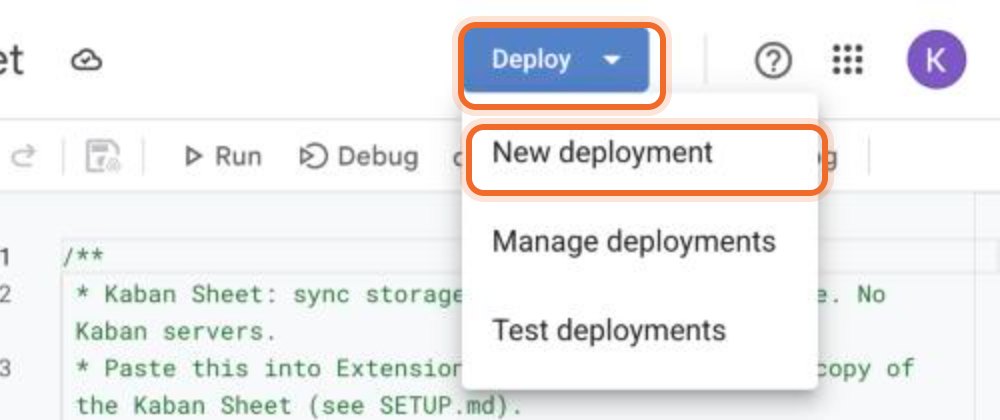
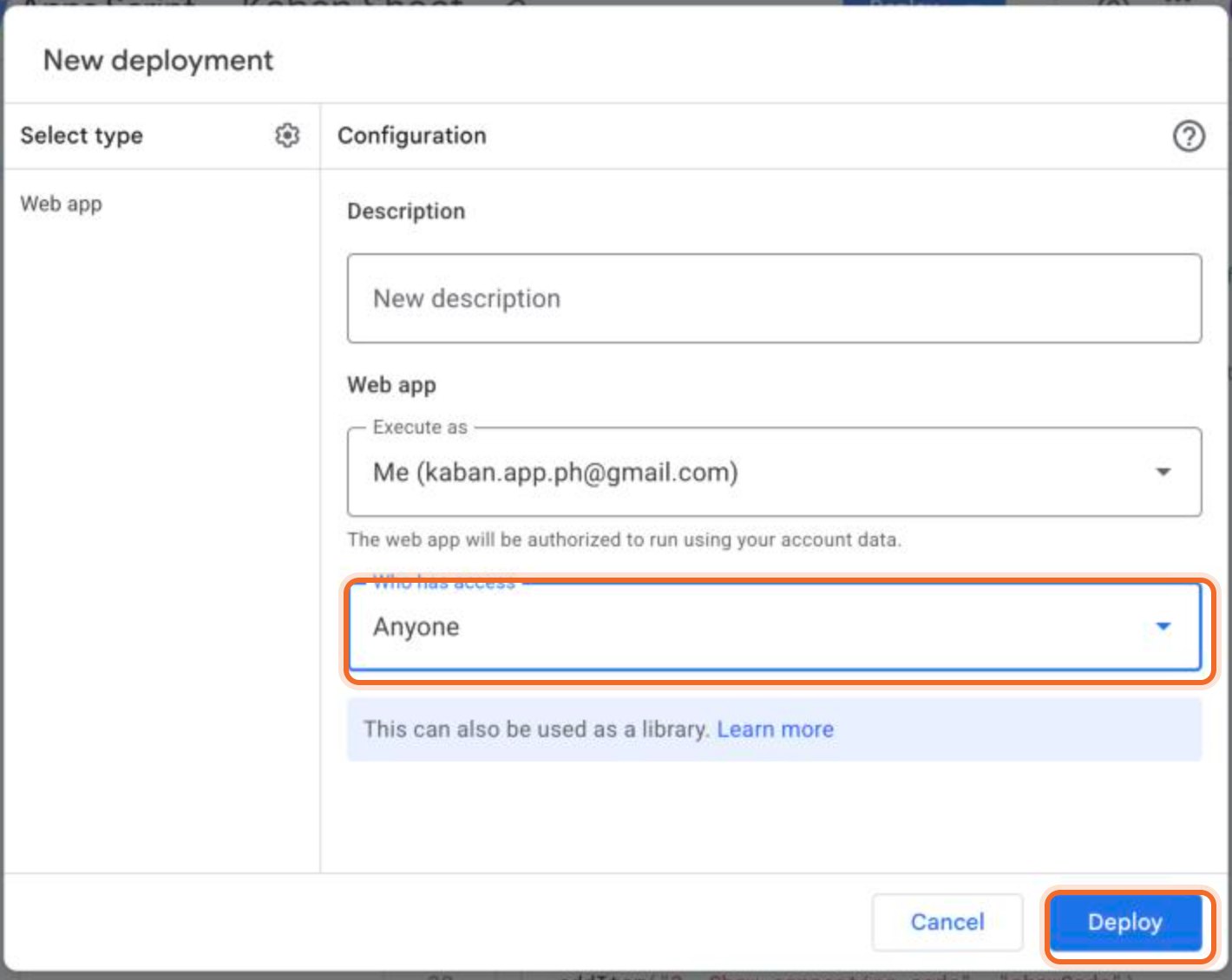
Click the blue Deploy button, then New deployment.
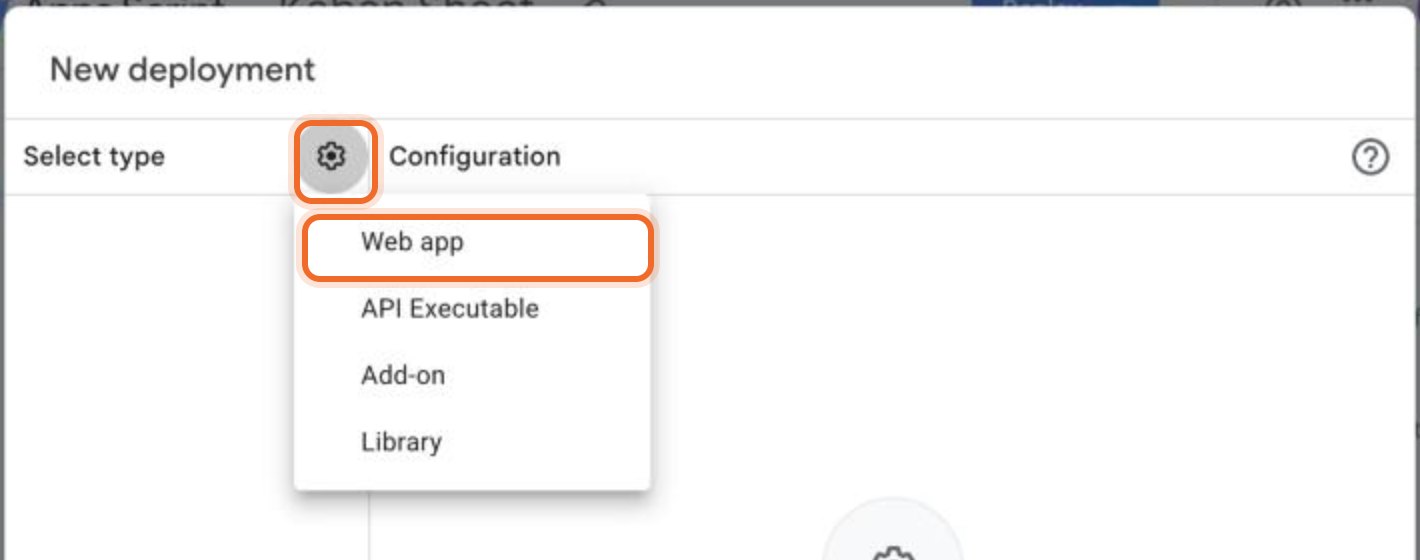
Click the gear next to "Select type", then choose Web app.
Change Who has access to Anyone (it starts as "Only myself"). Leave "Execute as" on Me. Click Deploy.
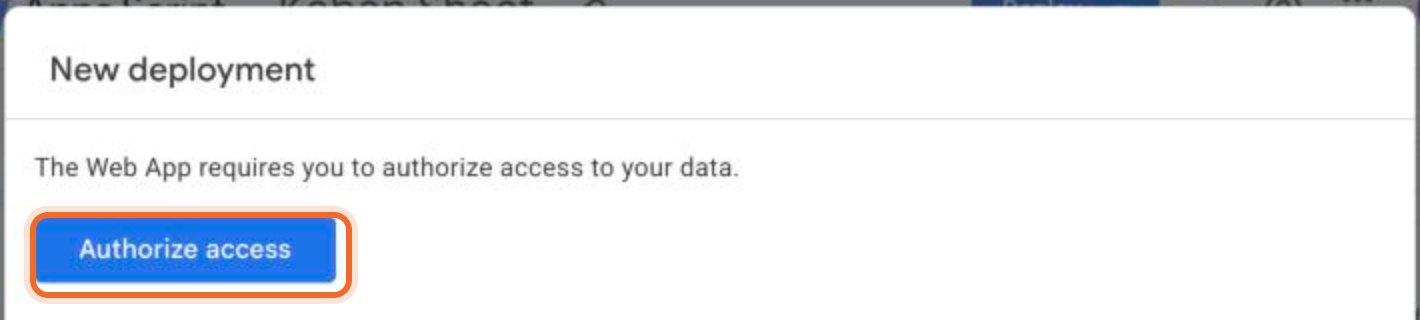
Click Authorize access. The same Google screens as in steps 5 to 7 appear again: Advanced, Go to Kaban Sheet (unsafe), Select all, Continue.
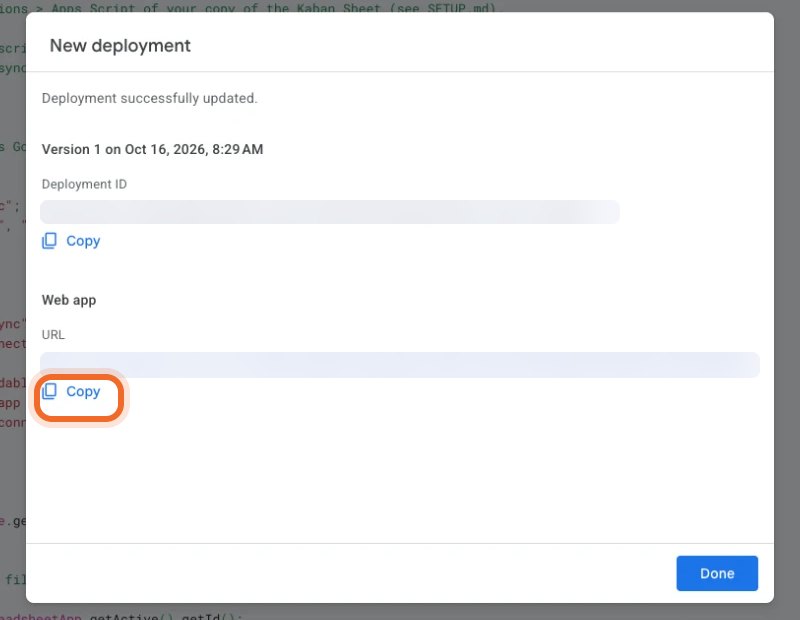
Google shows your Web app URL. Click the second Copy, the one under URL (not the one under Deployment ID). Then click Done.
"Anyone" sounds scary, but it's safe: the web app only answers to someone who has your secret connection code. Without it, no one can read or change your data.
4 Get your connection code
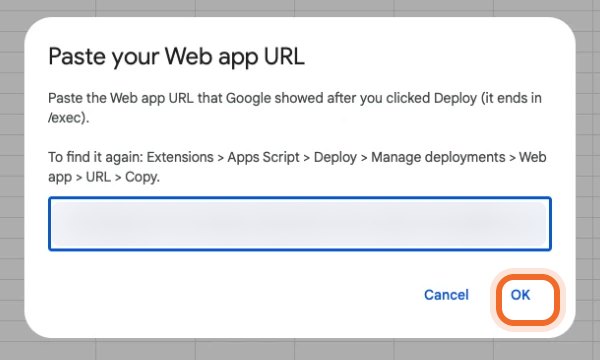
Go back to the sheet tab and click Kaban › 2. Show connection code. The first time, it asks for your Web app URL: paste it (⌘V or Ctrl+V) and click OK.
Your connection code appears. Click inside the box, select all (⌘A or Ctrl+A) and copy it (⌘C or Ctrl+C). It starts with KSYNC1.
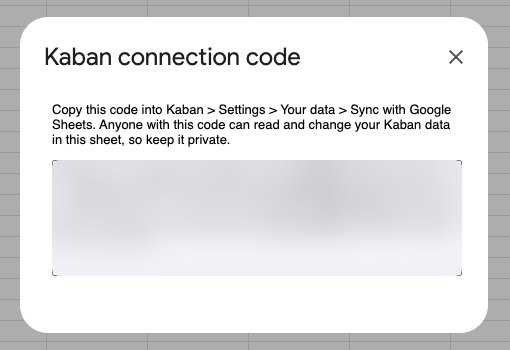
Treat the code like a password. Anyone who has it can read and change the Kaban data in your sheet. Never post it in a chat or send it to us.
Connect each device
- On your computer: in Kaban, go to Settings › Your data › Sync with Google Sheets, paste the code in Connection code and click Connect. Your data goes up to the sheet.
- Get the code to your phone privately: send it to yourself (email to yourself, or a note in your own Google Keep or Notes). Don't post it in a group chat.
- On your phone: open Kaban from its icon, go to the same screen, paste the code and tap Connect. Your data comes down from the sheet.
- Leave Sync automatically on. That's it.
Already have data on both devices? Connect the one with your real data first, let it sync, then connect the other. Both sets are combined; delete any duplicates by hand. If one device only has test entries, use Settings › Erase this device on it before connecting.
Day to day
- It's automatic. Kaban syncs when it opens and after you change something, whenever you're online. Offline changes wait and go up next time.
- Check it in Settings › Your data: it says Connected to your Kaban Sheet, or shows the problem. Tap Manage to see Last synced or tap Sync now.
- See your data in the sheet: click Kaban › Refresh readable tabs to get plain Accounts and Transactions tabs you can sort, filter and chart. Kaban's own data is in a hidden tab; don't edit it.
- To stop syncing on a device, tap Disconnect. Your data stays on the device and in the sheet.
Sync isn't a backup. If you delete something by mistake, the delete syncs everywhere too. Keep making backups.
Sharing bills with your partner
Couples can share household bills and settle-ups, while each person's own accounts, debts and spending stay private on their own phone.
- One of you makes a separate Kaban Sheet copy for the household, following steps 1–4 above.
- Send your partner the connection code (not the sheet) privately.
- Each of you opens Household in Kaban, finds Share with your partner, pastes the code in Connection code and taps Connect.
Tip: use a different sheet for the household than for your personal sync, so your own data never goes into the shared one.
If something goes wrong
"That doesn't look like a Kaban connection code"
Copy the whole code again from Kaban › 2. Show connection code. It starts with KSYNC1. and has no spaces or line breaks at the ends.
The sheet says "Deploy the web app first"
Step 3 wasn't finished. Go to Extensions › Apps Script › Deploy › New deployment and choose Web app, with Who has access: Anyone.
I don't see the Kaban menu in the sheet
Wait a few seconds after the sheet opens, or reload the page. Make sure you're in your copy (its name usually starts with "Copy of"), not the original link.
"Couldn't reach your Kaban Sheet" or "answered with an error (404)"
The code points to the wrong web address. In the sheet, click Kaban › Change Web app URL, paste the URL from Extensions › Apps Script › Deploy › Manage deployments, and copy the new code. In Kaban, tap Disconnect, paste the new code and tap Connect.
Settings shows "Problem: …"
Check that you're online, then tap Manage › Sync now. If it keeps failing, open your sheet to check it still exists and you're signed in to the same Google account, then deploy again (step 3) and paste the new code if it changed.
I think someone else has my code
In the sheet, click Kaban › Make a new connection code. The old code stops working right away. Paste the new code on each of your devices.
I changed phones
On the new phone, add Kaban to your home screen, open it from the icon, paste your connection code in Sync with Google Sheets and tap Connect. Then activate your plan with your code.
Privacy
Questions about your data
Can Kaban see my money data?
No. Kaban has no servers that hold your data. It stays on your device, and if you turn on sync, in your own Google Drive.
What does Kaban collect?
If you get a free code, we keep your email and the code, to send and look it up. The app also sends anonymous counts, like which screens are opened, never amounts or anything you type; you can turn this off in Settings. Your money data itself we never receive. See the privacy policy.
What about "Ask AI"?
Ask AI only copies a summary to your clipboard. Nothing is sent unless you paste it into an AI app yourself, and then that app's privacy terms apply.
Can you recover my data or reset my PIN?
No, and that's on purpose: no one but you has your data. Keep a backup, and remember your PIN.
Do I have to use Google Sheets sync?
No. It's optional. If you use Kaban on one phone and make regular backups, you don't need it.
All of Kaban is free until December 31, 2026 with a free code: just your email.
Still stuck?
Email us at support@kabanapp.ph, or message @kaban.app.ph on Facebook or Instagram. Have an idea? Suggest a feature. Never send us your PIN, your backup file or your connection code.